








Download & Support
Chinese user guide added
Software Update version 3.0.4.1
Please use this version to update
Changes -
Improved compatibility - Adobe Flash Player
Improved compatibility with Websites, Chat Rooms and Messengers that use Adobe Flash Player.
Save the file to your PC and run it to update
After updating please run through the 'Minoru Setup Wizard' to reallign Minoru's eyes.
A Guide to using Minoru in Low Light
All webcams can struggle to work as well as expected in low light. This is due to the small area image sensors used inside all webcams. Also most webcams are set up by default to give a bright picture and in a low light environment there is a trade-off between brightness and image smoothness (fps - frames per second). If you can improve the lighting levels then this should be done first as you will ultimately get a much better image but we understand that this is not possible in some cases.
By using the following guide you should be able to optimise Minoru to your own personal taste but remember that in low light you cannot have everything.
First click on the Spanner icon in 'Minoru Video Capture' to open the webcam settings.
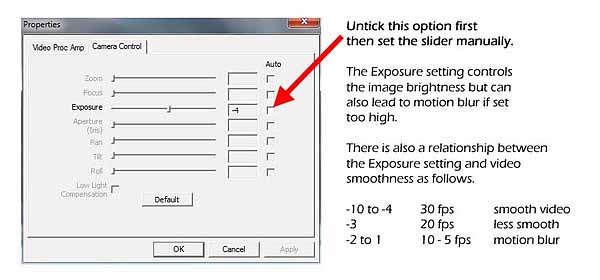
Open the 'Camera Control' tab, untick auto exposure and set the exposure to -4. You will probably find that the picture goes too dark. The image brightness can be brought back up again using the 'Video Proc Amp' tab settings. Don't be tempted to just set the exposure tab to -3 or -2 at this stage as you will then lose the image smoothness.
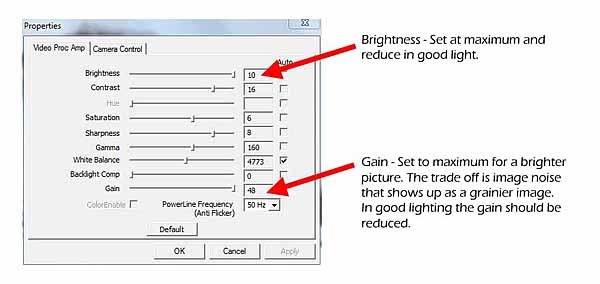
Try out the settings shown above as a first try. If the image is still too dark then you can raise the Exposure setting to -3 and try again. You will lose a little smoothness as expected but should still be able to get a good image. Hope this helps!
Take Minoru Outside with the New and Improved Driver
Have you ever wanted to make Minoru 3D videos outside. Now you can with the new improved Minoru driver.
Download and run the driver updater using the link below.
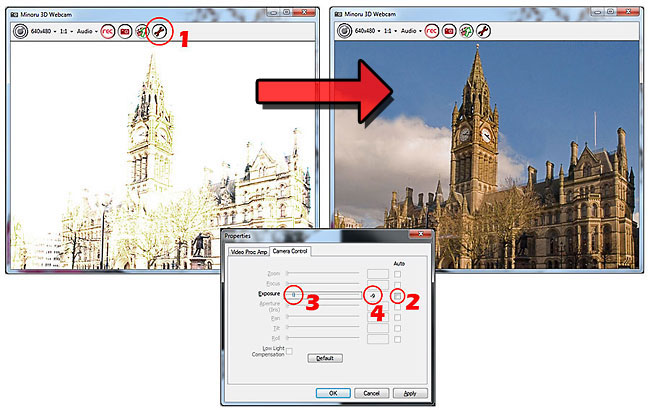
Using 'Minoru Video Capture' -
1 - Open 'Properties' and select the 'Camera Control' tab
2 - Untick 'Auto Exposure' so you can use the full exposure range
3, 4 - Adjust the exposure. Values of -7 to -10 are suitable for outdoor use
Make sure you use a 30 fps mode when you're outside for the best quality video.
Good Luck and let's see some of your new Minoru videos on YouTube very soon!
Software Update version 3.0.1.4
Please use this version to update
Changes -
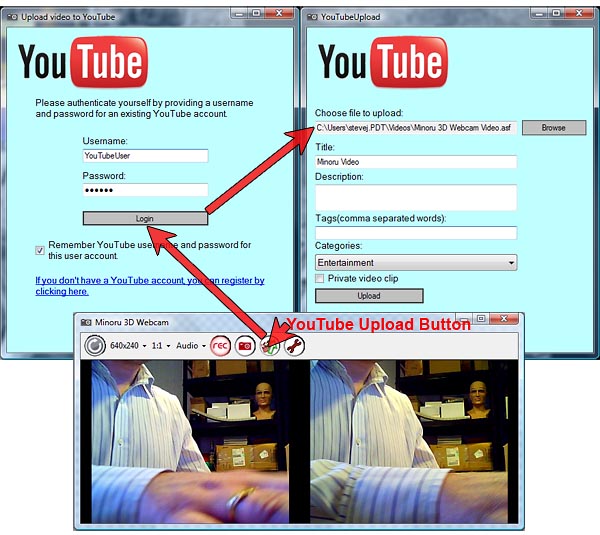
New Feature - YouTube easy uploader
Now it is so easy to upload your 3D creations. The uploader takes full advantage of the YouTube 3D Player, just Google 'yt3d:enable' for more info on that.
Or just check out this video
We recommend recording your videos as 'Side by Side' RL format and the YouTube uploader will do the rest.
Save the file to your PC and run it to update
After updating please run through the 'Minoru Setup Wizard' to reallign Minoru's eyes.
Software Update version 2.0.10.8
Please use this version to update.
Changes -
Fully supports Windows 7
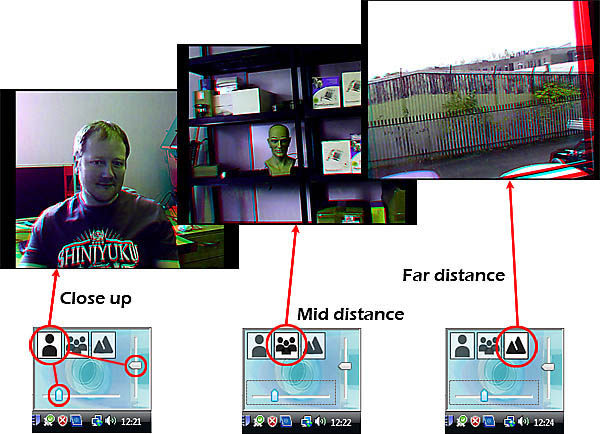
New feature, Distance Profiles. Now it is possible to store and retrieve instantly the alignment settings for three working distances; close up, mid distance and far distance.
That is achieved using the quick align feature (single click the Minoru system tray icon). The alignment settings are initially set by the Minoru software but can then be fine tuned by the user using the two sliders.
Save the file to your PC and run it to update.
After updating please run through the 'Minoru Setup Wizard' to realign Minoru's eyes
Software Update version 2.0.9.12
Please use this version to update.
Changes -
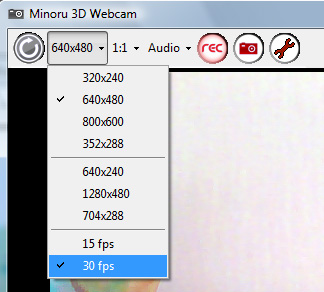
Add new 30 frames per second mode for 640x480, 800x600 and 1280x480 output modes. Note that on a small number of PC's the 30 fps mode cannot work due to the specific PC hardware and a blank screen will result. In that case then please select the 15 fps mode. Also note that in order to achieve 30 fps then the scene should be well lit or the exposure should be adjusted manually.
Improved audio/video synchronisation when using the 'Minoru Video Capture' application
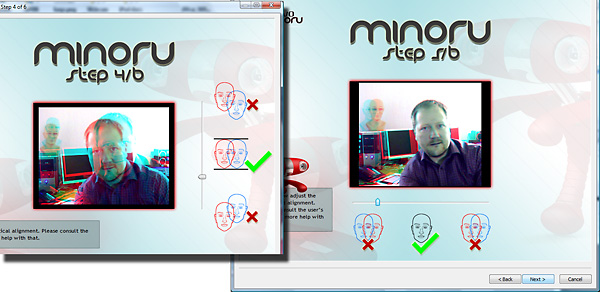
Updated 'Setup Wizard' that should help out some novice 3D users.
Save the file to your PC and run it to update.
After updating please run through the 'Minoru Setup Wizard' to realign Minoru's eyes
Software Update version 2.0.9.4
Please use this version to update.
Changes -
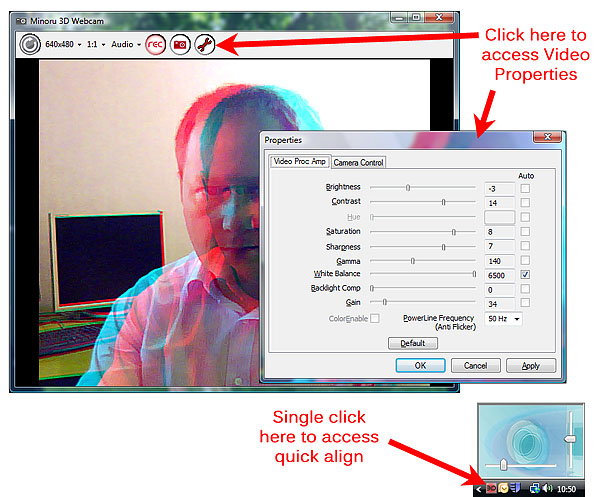
Add new 'Quick Align' function. This can be used for fine tuning the camera alignment in any application.
Add 'Video Properties' page that can be accessed from Minoru Video Capture or from other applications that support that.
Add French language support, thanks to Alain Wilmart for the excellent translation! Download the French user's guide below.
Save the file to your PC and run it to update.
After updating please run through the 'Minoru Setup Wizard' to realign Minoru's eyes
Software Update version 2.0.5.2
Please use this version to update.
Changes -
Add new 'Row Interlaced' mode for use with eDimensional LCD shutter glasses www.edimensional.com
Row Interlaced/Interleaved mode also compatible with 3D monitors from Zalman, Hyundai, Miracube and JVC
Add 'Video Output' setting to allow you to set the default video output size for Minoru. Other applications that use Minoru will often select the default video output size which was previously set to 320x240. Now you can set that yourself in the Minoru options.

Save the file to your PC and run it to update.
After updating please run through the 'Minoru Setup Wizard' to realign Minoru's eyes
Software Update version 2.0.3.2
Changes -
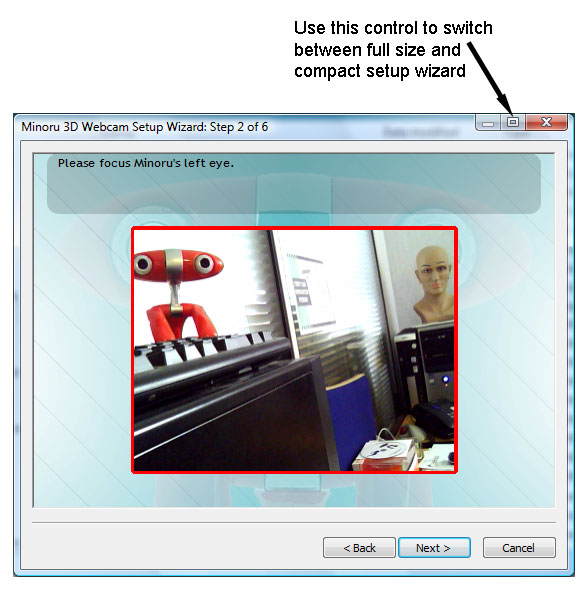
Introduce new compact setup wizard for user's with small resolution screens e.g. Netbooks
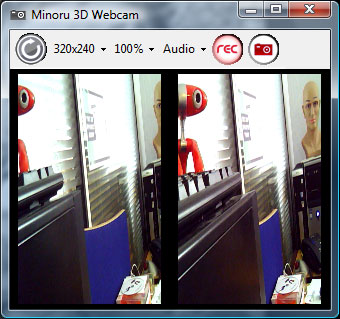
Support 'side by side' squashed mode (4:3 aspect). The squashed 'side by side' mode can be used to create 3D content for the new Carl Zeiss cinemizer Plus. Just make sure that you use the LR (left/right) mode and record in 640x480 @ 30fps.
More information on the fantastic cinemizer product is available from http://www.zeiss.com/cinemizer
German, Spanish, Italian and Japanese language support.
Download Link - Save the file to your PC and run it to update.
After updating please run through the 'Minoru Setup Wizard' to realign Minoru's eyes
Userguides, Revision 1.2 February 2009
User's guides open with Adobe Reader included on the software CD
Support email - [email protected]
Minoru 2.0.1 Full Version
Install this version if you are having problems installing from the CD supplied with Minoru
Download Link - Save the file to your PC and run it to install the software.
LINUX Support
The latest Linux UVC driver supports streaming from both Minoru cameras simultaneously at 30fps (up to 320x240) or 15fps (up to 640x480). You can download it from the Linux UVC Mercurial repository
(http://linuxtv.org/hg/~pinchartl/uvcvideo) or wait for Linux 2.6.30.
Please note that anaglyph (pseudo-3D image with red and blue or red and cyan components), "picture in picture" and "side by side" output provided by the Minoru3D driver on the Windows platform is not supported at this stage.
This is an excellent opportunity for all of you to get into V4L2 application development and write a nice anaglyph Linux application :-)


Your Basket is empty.

